4.2 Applications - VulnDetect Technical Guide
Applications Overview
Use the Applications page to check the status of applications. The view lists several fields that help in managing app security.
- The Versions and Installations columns indicate the number of installations and their respective versions detected by the agent.
- Based on the scans reported by agents, the applications are scored on these statuses.
- OK
- End-of-Life(EoL)
- 0-Day
- Insecure
- The Highest CVSS Score indicates the severity of apps detected as Insecure.
- Updates in Progress and Updates Approval Needed are updates that have been deployed or are pending.
the application has a information page in the SecTeer VulnDetect Community Forum. Clicking the "VulnDetect Community" will link you to the forum page.
In the Applications page you can click the Applications name or a numerical value to display an associated page that provides more extensive information.
Filter by Applications or Vendor
On the Applications page, you can filter the applications by Applications name or Vendor.
To do that:
- On the applications page, enter either Application- or Vendor name in the respective fields
- Click the arrow next to Application and Vendor to sort the list in alphabetical, ascending or descending order
Application Version
The Application Version page is displayed when you click on an application or versions-number on the Applications page.
This page displays:
- Version detected.
- Highest CVSS score for Insecure applications.
- Applications status:
- Ok this version has no known vulnerabilities
- Insecure this version has known vulnerabilities
- Update an update is available and recommended for this version. The update can be applied automatically by SecTeer VulnDetect.
- 0-day this update fixes known 0-day vulnerability
Clicking the Version number or the CVSS score will display a list of security issues affecting the installation and the recommended version to install
Click a CVE, where available, to view
detailed information related to the item.

The content shown on this page comes from the National Vulnerability Database (NVD), which is publicly available from NIST. There are no warranties, implied or otherwise, concerning this information or its use.
Installations
On the Applications page, click Installations to view all hosts that have the selected application installed.
A new view will show all the Host that have the selected application installed. For more information please head to the Hosts Page documentation.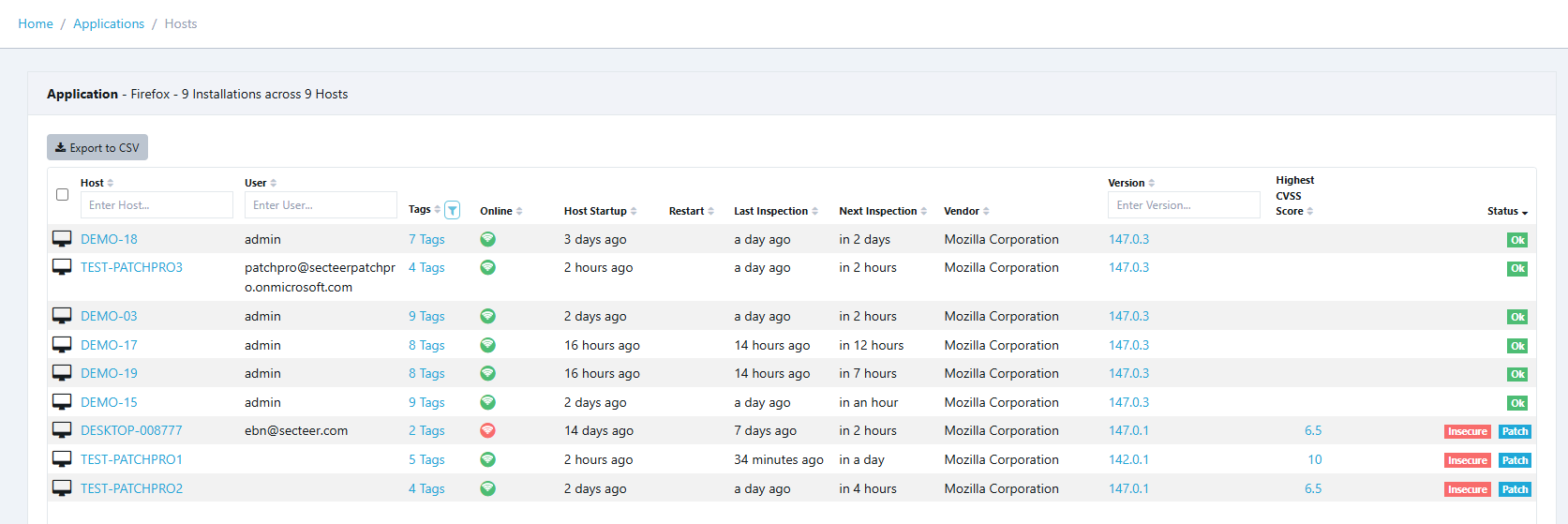
- Status:
- Ok this version has no known vulnerabilities
- Insecure this version has known vulnerabilities
- Update an update is available and recommended for this version. The update can be applied automatically by SecTeer VulnDetect.
- 0-day this update fixes known 0-day vulnerability
Export to CSV
On the Applications page, click Export to CSV to download the table into CSV format.
This function is available on the following pages:
This function is available on the following pages:
- Applications
- Application version
- Hosts (accessible when clicking Installations number)