4.12.1 Sites Page
As a System Administrator, you can create, edit and manage users on the Sites page, but you will need specific site privileges to perform regular tasks.
Please be aware that:
- Default site privileges can only be managed by System Administrators.
- Users with default site privileges will automatically get access to new sites.
- When a user’s default site privileges are changed, their access to all sites will update except the site currently being edited.
- When a user’s default site privileges are disabled, they lose access to all sites except the one currently being edited.
- If a System Administrator disables their own default site privileges, they will not lose access to their default site or the site currently being edited.
Sites page action
On the Sites page there are buttons at the bottom of the page.
Some of them are greyed out if at least one Site is not marked. In this section we will focusing on:
Create New site, Edit Selected Site, Set Selected Site as Default and Manage Site Users.
Create New Site
On the Site page you can create a new site.
To create a new site:
- Click Create New Site and give it a site name.
- A pop-up window will show up
- Provide the email address to receive reports.
- Select the Active Directory grouping
- Select site privileges options to apply.
- Click Create Site.
Edit Selected Site
On the Site page you can edit existing site.
To edit an existing site:
- Select a site from the list of sites.
- Click Edit Selected Site
- Here you can edit: Name of the site
- Report email address
- Active Directory grouping
- Automated Site Approvals
- Click save when finished to apply
Manage Site Users
On the Site page you can access Manage Site Users page
To access the Site Users page:
- Open Sites page.
- Select and Mark a site
- Click Edit Selected Site
- A pop up will show up
- Click Manage Site Users on the bottom of the pop up
- Or click on a Site Name
- Shows the list of Users and privileges
Add Site Users
On the Manage Site Users Page
You can add a site user.
To do so:
- Click Add User at the bottom.
- A pop up will show up
- Fill in the required information
- Click Add User to save and create a site user
- When adding a user, you can:
- Assign privileges (global, default or current site)
- Enable Single-Sign-in*
- Allow the user to receive email reports
 *(If the Signle-Sign-In is checked, the user can only log in with Single Sign in. That means they are not allowed to sign in using Vulndetect username and password.)
 During the first sign in using Single-Sign-In, users will see a login prompt from Microsoft requires the following information:
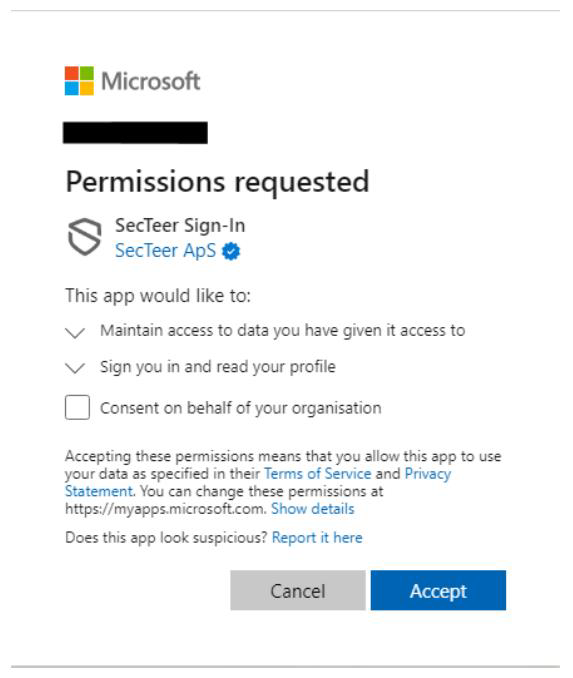

Note: if the first user is not authorized to accept on the behalf of the organization, or does not authorize by checking the box, all subsequent Single-Sign-In users will see the same login until it’s approved.
Only users with at least read-only access to a site will receive emails for that site. If their access is revoked, they will no longer receive emails.
Edit Site Users
On the Manage Site Users page
You can edit existing Users.
To do so:
- Select and mark a site user from the list
- Click Edit Selected User at the bottom
- Make edits to the fields and options
- Click Save to apply and save edits